Using the Microsoft SharePoint Yeoman generator (for a quick review of the tool you can check this blog post) you can create your first ACE project.
To create your first ACE with Yeoman you have to execute the command:
yo @microsoft/sharepointand provide various values to it:
What is your solution name? Your-Custom-Solution-Name
Which type of client-side component to create? Adaptive Card Extension
Which template do you want to use? Generic Card Template
NB: The latest Microsoft SharePoint Yeoman generator (version 1.18.0) is a bit different than the previous version, if you have an older version you will not see the “Generic Card Template” option, instead you will see a selection of ACE template.
What is your Adaptive Card Extension name? Your-Custom-ACE-Name
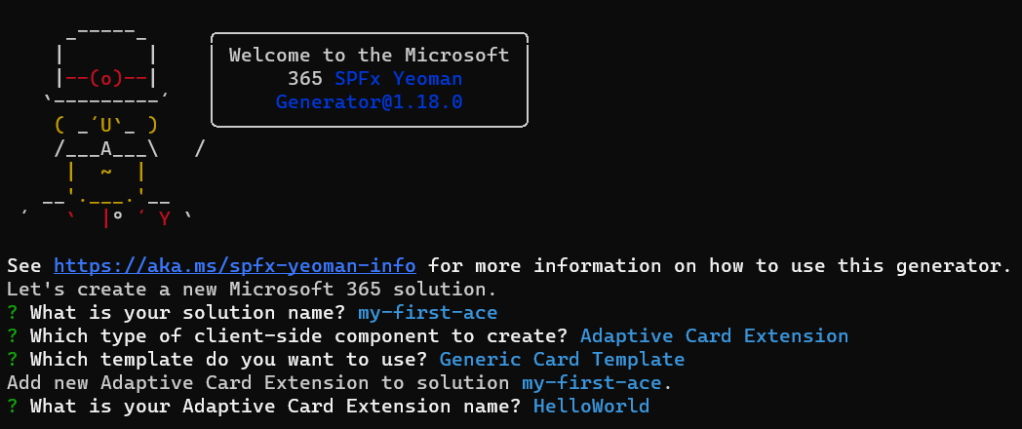
Once the tool has finished to scaffold the solution you will be welcomed by the result:
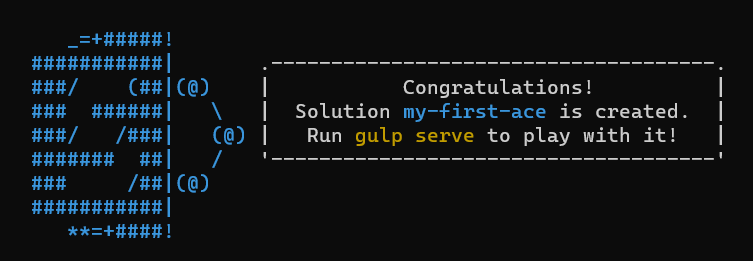
As the message reads: congratulations! You’re ready to start developing your newly created ACE!
As the message says you will simply have to execute gulp serve but, there’s always a but, before doing that you have to specify either the target URL in the serve.json file or the SPFX_SERVE_TENANT_DOMAIN OS variable.
In the serve.json file you will find as the initialPage property the value:
https://{tenantDomain}/_layouts/workbench.aspxThe placeholder {tenantDomain} gets replaced by the OS variable SPFX_SERVE_TENANT_DOMAIN, in case you don’t have it specified you can manually replace the placeholder with your target development site URL.
Once that you have replaced your initialPage URL or declared the SPFX_SERVE_TENANT_DOMAIN OS variable you are ready to go and execute
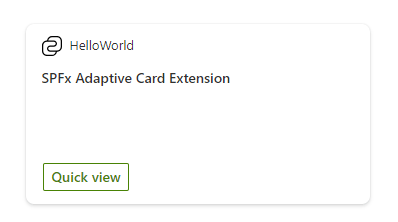
gulp serve The resulting default ACE will be something like, for the card view:
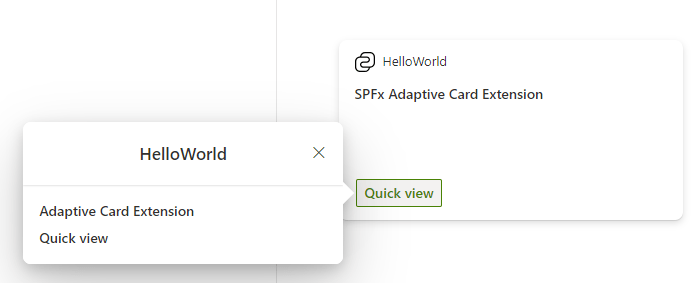
for the quick view
and the property pane will look like the following
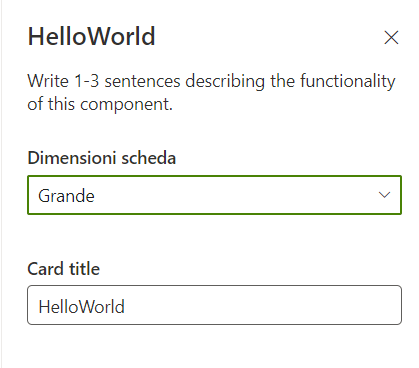
You can now start customizing your Adaptive Card Extension!
If you want some hint on how to interact with it you can check here.
Hope that helps!


 I am GuidoZam
Leave a comment