Introduction
[Disclaimer] In this post I will not cover how to create a declarative agent, if you’re interested in knowing the basics you can check my previous post here.
When creating declarative agents the pro-code way, there are plenty of possibilities to customise your agents. In this post, I will cover how to add a SharePoint Online site as knowledge base for a declarative agent.
The sample declarative agent I’ve created is based on a SharePoint Online site that contains Microsoft Copilot Studio licensing PDFs, let’s see how it displays and how it works.
If you’re interested in checking the sample code you can find it here.
Visual appearance
Nowadays I think everyone already know what is the interface for a declarative agent, however, just to give a little bit of context, I want to show you a couple of screenshots.
As every declarative agent we have a chat-like interface:
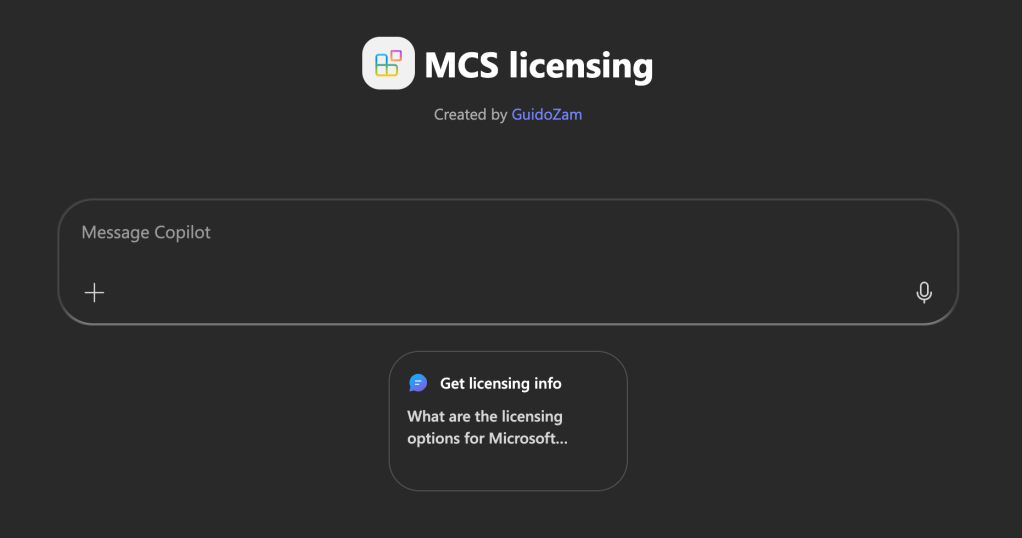
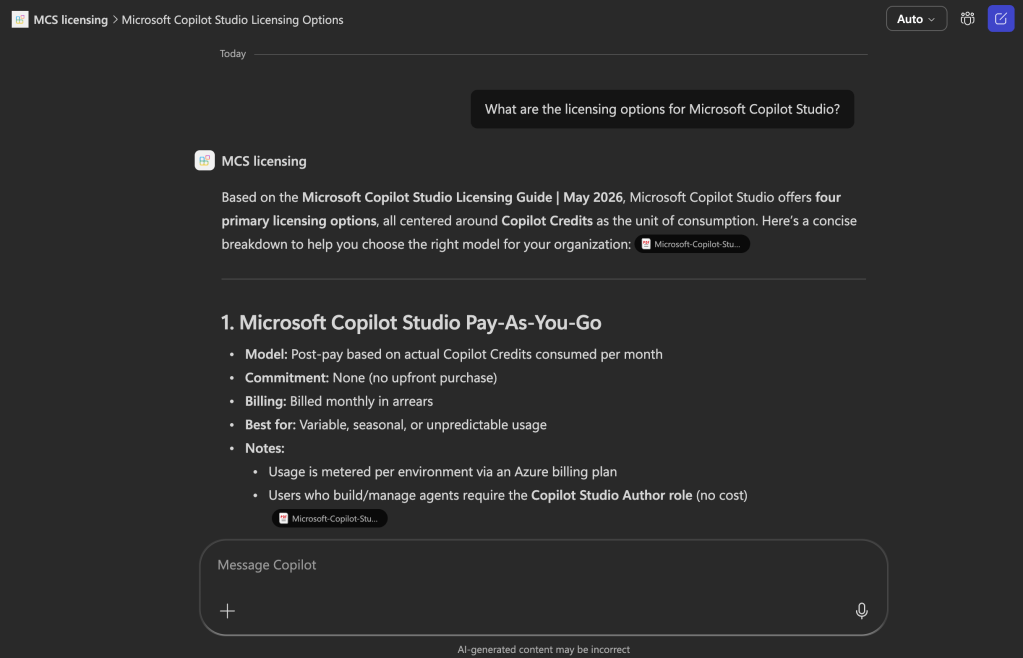
To speed up the testing phase I’ve added a suggested prompt that query the agent about the licensing options of Microsoft Copilot Studio.
As a result the agent will list all the available licensing types of MCS in the PDFs uploaded to my SharePoint Online site.
Show me the code
In this particular sample, there isn’t much work to do in order to support the SharePoint Online site as knowledge base, you simply have to define the capability to reach SPO and specify an identifier of the resource.
In the declarativeAgent.json file, alongside the name, description and instructions properties, it’s also possible to define the capabilities property.
This capabilities property contains the capabilities that the agent will have. To define a SharePoint Online site as knowledge base, you simply have to define an object with name OneDriveAndSharePoint, like the following:
 "capabilities": [
   {
     "name": "OneDriveAndSharePoint",
     "items_by_url": [
       {
         "url": "https://<your tenant>.sharepoint.com/sites/<your site>"
       }
     ]
   }
],
The object specify that the agent has the capability to access OneDrive and SharePoint Online. This object support two ways to define the items, one is the one you can see in the code snippet above using items_by_url, the other way is to use items_by_sharepoint_ids.
Using the items_by_url will simply require to have the full URL to the item you want to use as knowledge base. If you don’t specify any, the whole tenant will be accessible, if you specify a SharePoint Online site the whole content of the site will be accessible to the declarative agent.
Using the items_by_sharepoint_ids is slightly different, you will require to specify a more complex object that also contains the IDs to identify the target site, library or item. To have an idea, here are some of the properties with placeholder values:
"items_by_sharepoint_ids": [ { "site_id": "<site-id>", "list_id": "<list-id>", "unique_id": "<unique-id>" }]
This is just to give you an idea of the possibilities, there are also other properties that I will not cover here but that you can check the JSON schema on the official documentation here.
Conclusions
Adding a knowledge base to a declarative agent created with a pro-code approach is a very easy and straightforward process. Using SharePoint Online as knowledge source will give plenty of possibilities to create specialised site(s) to be used by declarative agents as knowledge source(s).
If you’ve never created a declarative agent I suggest that you start with my previous post or navigate to the Copilot dev camp, which is a very comprehensive site with multiple ways of creating your declarative/custom engine/low-code/no-code agents.
Hope this helps!


