Introduction
[Disclaimer] In this post I will not cover how to create a declarative agent the pro-code way, if you’re interested in knowing the basics you can check my previous post here.
[Disclaimer 2] Using OneDrive as knowledge base uses the same capability as using SharePoint Online, more on my previous blog post here.
When creating declarative agents the pro-code way, there are plenty of possibilities to customise your agents. In this post, I will cover how to add a OneDrive folder as knowledge base for a declarative agent.
The sample declarative agent I’ve created is based on a OneDrive folder that contains some documents containing acronyms about Microsoft’s technologies.
If you’re interested in checking the sample code you can find it here.
Visual appearance
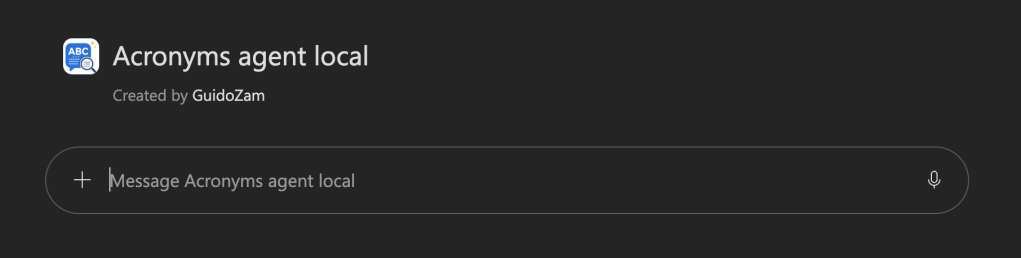
As every declarative agent, we have a chat-like interface:
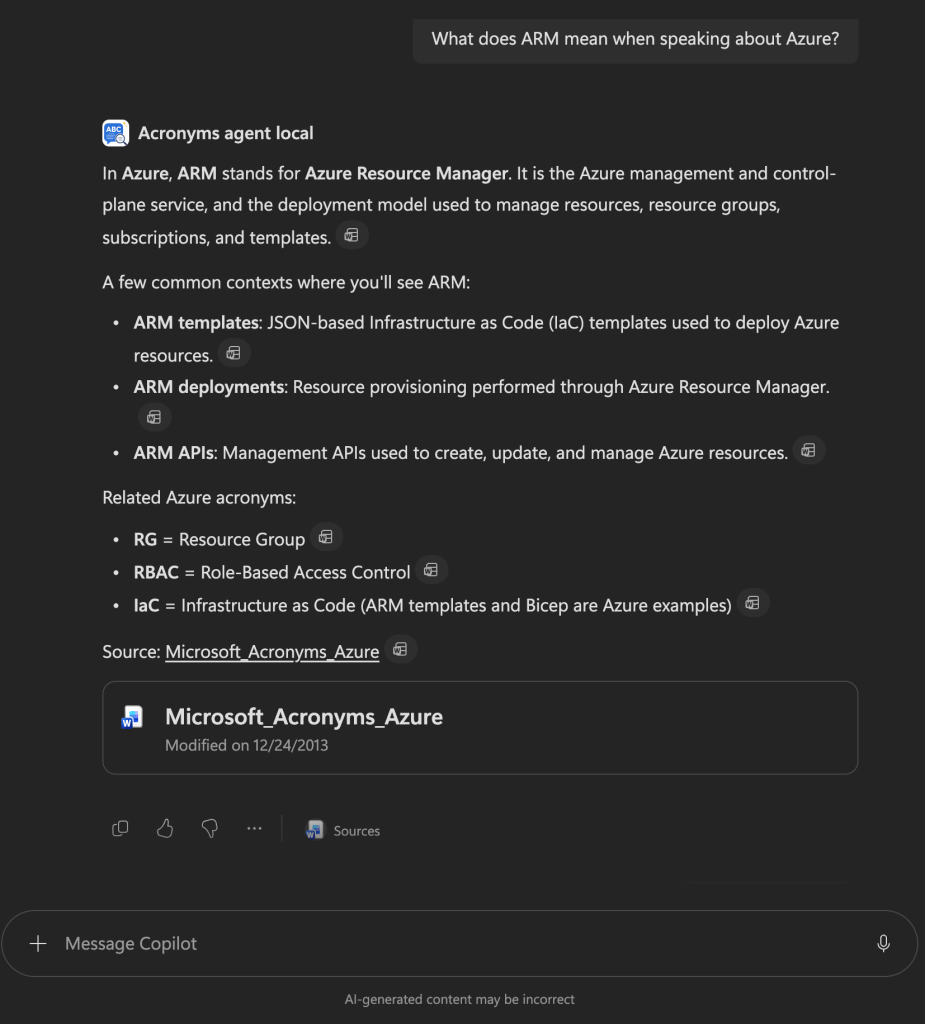
With this sample agent, you will be able to ask questions like the following and have the agent respond based on the acronyms present in the file I’ve uploaded to OneDrive.
Show me the code
In this particular sample, there isn’t much work to do in order to support OneDrive as knowledge base, you simply have to define the capability to reach SPO and OneDrive and specify an identifier of the resource.
In the declarativeAgent.json file, alongside the name, description and instructions properties, it’s also possible to define the capabilities property.
This capabilities property contains the capabilities that the agent will have. To define a OneDrive file as knowledge base, you simply have to define an object with name OneDriveAndSharePoint, and define the URL of the folder or file you want to use:
 "capabilities": [
   {
     "name": "OneDriveAndSharePoint",
     "items_by_url": [
       {
         "url": "https://<tenant>-my.sharepoint.com/personal/<username escaped>/Documents/Acronyms%20sample%20files"
       }
     ]
   }
],
The object specify that the agent has the capability to access OneDrive and SharePoint Online. This object support two ways to define the items, one is the one you can see in the code snippet above using items_by_url, the other way is to use items_by_sharepoint_ids but this second one goes beyond the scope of this blog post.
This is just to give you an idea of the possibilities, there are also other properties that I will not cover here but that you can check the JSON schema on the official documentation here.
Conclusions
Adding a knowledge base to a declarative agent created with a pro-code approach is a very easy and straightforward process. Using OneDrive as knowledge source will give plenty of possibilities to create specific folders or documents to be used by the declarative agents as knowledge source.
If you’ve never created a declarative agent I suggest that you start with my previous post or navigate to the Copilot dev camp, which is a very comprehensive site with multiple ways of creating your declarative/custom engine/low-code/no-code agents
Hope this helps!


